

Best USB 3.2 Gen 2 Type-C Cable Picks for Fast Charging and Data Transfer
2026-10-31
Finding a USB-C cable that actually delivers on both fast charging and high-speed data transfer can feel like a gamble. Too many cables overpromise and underdeliver, leaving you with slow syncs or overheating ports. That’s why I’ve rounded up the best USB 3.2 Gen 2 Type-C cables worth your money—including standout options from EBCYX that balance durability, speed, and price without the usual compromises.
Where USB 3.2 Gen 2 Speeds Actually Show Up
You'll notice the jump most when moving large files to or from a portable NVMe SSD. A 40GB 4K video project that takes roughly four minutes over a 5Gbps connection finishes in about half that time on a true 10Gbps port. It's not just the headline transfer rate, though—sustained reads and writes stay high because the interface no longer bottlenecks the drive's controller.
Docking stations and USB-C hubs are another place where the extra bandwidth quietly matters. Plug a UHS-II SD card reader, a 2.5G Ethernet adapter, and an external display into the same hub, and a 5Gbps upstream port will force them to share a narrow pipe. With USB 3.2 Gen 2, those devices can pull data simultaneously without the stop-start lag that makes file transfers and network backups feel sluggish.
If you use a VR headset over USB-C or capture uncompressed 1080p60 video from a camera, you'll also see the difference. Both scenarios demand more than 5Gbps for stable, artifact-free streams. Gen 2 gives enough headroom to avoid dropped frames or compression, which is why newer headsets and capture cards list it as a requirement rather than a nice-to-have.
Charging and Data Transfer: Can One Cable Handle Both?
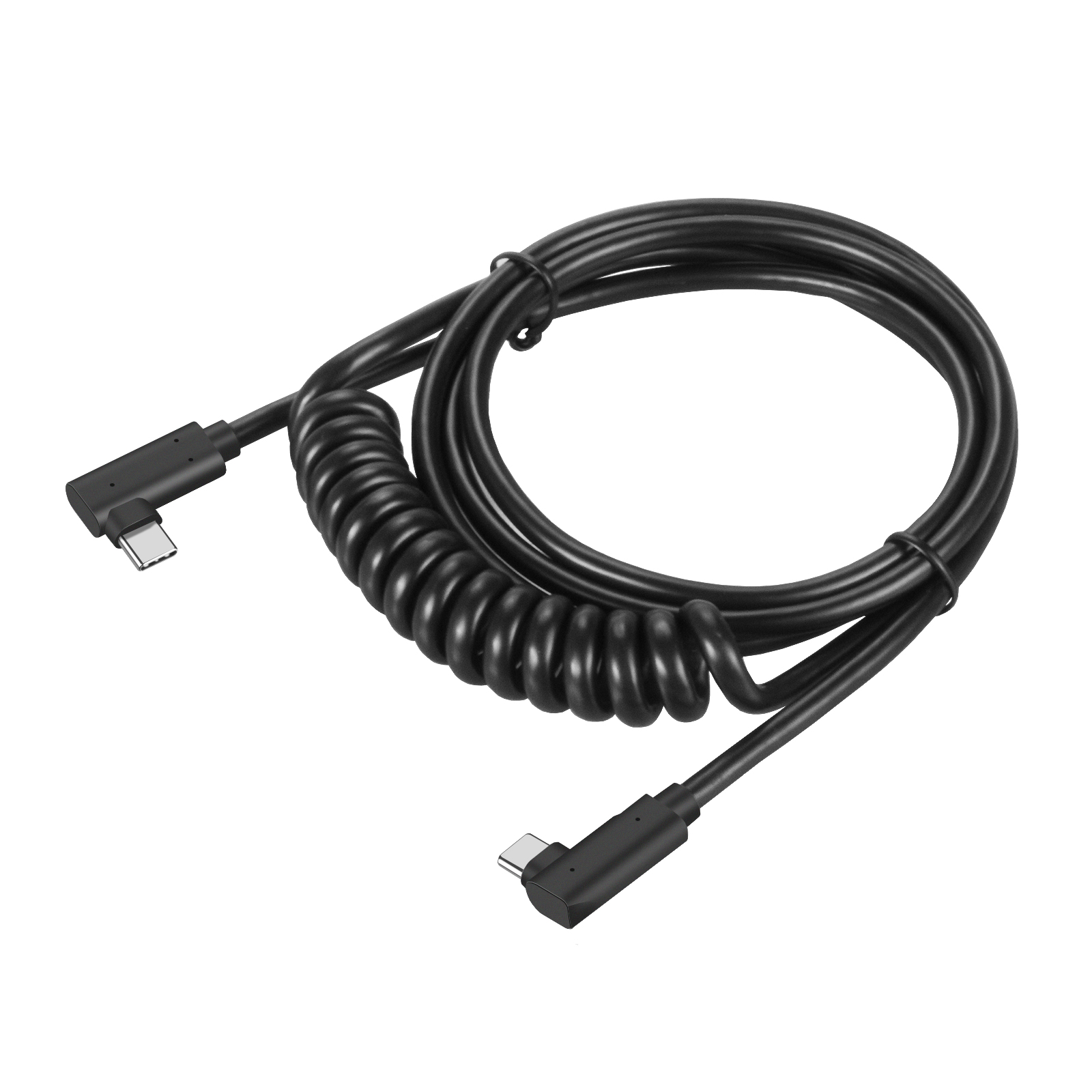
A single modern cable can absolutely juggle both tasks, but the real answer depends on what is inside the jacket. USB-C and Lightning are the most common examples where power and data share the same connector, yet manufacturers are not required to wire every pin for both. Some cables are built strictly for charging and leave out the data lines entirely, which is why a random cable from a drawer may power up a phone but fail to show it in a file manager.
The difference comes down to internal conductors and the chipset behind each end. A full-featured USB-C cable carries separate lanes for power delivery and data transfer, plus an e-marker chip that tells the charger and device what the cable can safely handle. Cheaper charge-only cables skip the high-speed data pairs to cut cost, even if they still support fast charging. That means two cables can look identical on the outside but behave completely differently when you plug in a laptop or external SSD.
In practice, if you want one cable for both jobs, look for terms like "data sync," "10 Gbps," or "USB4" on the packaging, not just a wattage number. A cable rated for 100W or 240W charging might still be limited to USB 2.0 speeds, while a thin data cable may cap out at 60W. When in doubt, use the cable that came with a high-performance device or buy from a brand that clearly lists both power delivery and transfer speed ratings.
The Connector Details That Prevent Early Failure
Most early connector failures trace back to a handful of overlooked details, not the overall design concept. The contact interface matters far more than the housing shape. For instance, the exact spring force of the female terminal—often specified as a narrow window between 1.5 N and 3 N—directly controls whether micro-fretting corrosion starts within the first hundred cycles. Too little force lets oxygen and moisture creep between mating surfaces; too much force shaves off the tin or gold plating, exposing base metal that oxidizes quickly. Equally critical is the thickness gradient of the plating itself. A sharp transition from 3 µm gold at the contact point to bare copper just a millimeter away creates a galvanic cell that quietly eats the connector from the edge inward.
Another silent killer hides in the molded plastic body, particularly around the locking lance or retention clip. Engineers often ignore the draft angle and gate location of the injection mold, but those details determine whether the plastic wall holds the terminal firmly or slowly creeps under thermal cycling. A connector that passes a vibration test at room temperature can fail in the field after two weeks of engine heat-soak, simply because the polymer lost 8% of its stiffness and the terminal backed out by half a millimeter. The fix is rarely a stronger latch—it's choosing a resin with lower moisture absorption and adding a subtle rib behind the contact, something a CAD screenshot won't reveal but a careful cross-section will.
Finally, the assembly process itself introduces defects that look innocent on paper. A terminal inserted slightly off-angle can shave a sliver of plastic from the housing wall, leaving debris that later lodges between mating contacts. Or the wire crimp might have the correct pull strength but suffer from uneven strand compression, creating a hot spot that accelerates stress relaxation. The most robust connectors aren't the ones with the fanciest features; they're the ones where the manufacturer controls the burr height on stamped terminals, verifies the insertion angle with a simple fixture, and inspects every batch under a microscope for micro-cracks in the plating. Those small disciplines matter more than any datasheet claim of IP67 or 10,000 mating cycles.
Cable Length and Signal Loss: What You Need to Know
Longer runs of coaxial or twisted-pair cable don't just add physical distance—they quietly eat away at the signal. Resistance per meter, capacitance between conductors, and dielectric losses all scale with length, progressively rounding off square waves and shrinking the voltage at the far end. The result isn't always a total dropout, but a rise in bit errors, slower negotiated link rates, and occasional dropouts that get blamed on the equipment instead of the wire.
At higher frequencies, the effect accelerates. A 3-meter HDMI cable might pass 4K without a hiccup, yet the same construction at 10 meters can refuse to sync or start showing sparkles. Ethernet has official length limits—100 meters for copper—but even within spec, running near the maximum leaves less headroom for connectors, patch panels, and temperature swings. Fiber changes the game by swapping electrical resistance for optical attenuation, but it's still not immune; bend radius and splices add their own losses.
The practical rule is to use the shortest cable that fits the job, and when a long run is unavoidable, step up to a thicker gauge or a signal type designed for distance. Active cables, repeaters, or balanced connections can push farther, but each adds cost and another point of failure. Testing at the actual length and resolution—not on a bench with a short jumper—is the only way to know if the signal survives.
Port Compatibility: Phones, Laptops, and Docks
A single USB-C port can mean very different things depending on the device it's attached to. Phones typically lean on the port for charging and basic data transfer, but many now push video output as well. Laptops, on the other hand, expect the same connector to handle power delivery, external displays, and high-speed peripherals all at once. Docks sit in between, translating one port into many while quietly negotiating power and bandwidth behind the scenes.
This mismatch shows up most clearly with Thunderbolt versus plain USB-C. A dock built for Thunderbolt may work fine with a phone that only supports USB 3.2, but you'll lose the extra display streams and high-wattage charging. Conversely, a cheap USB-C hub might refuse to charge a laptop at full speed, or fail to wake an external monitor connected through a phone. Checking the actual alternate modes and power profiles matters more than the physical shape of the port.
Practical compatibility often boils down to what the weakest link can handle. A laptop dock expecting 100W input won't negotiate that from a phone charger, and a phone won't magically gain dual 4K display support just because it's plugged into a fancy dock. The best approach is to list what you actually need—data speed, display count, charging wattage—and then match devices and docks that all support those same modes, rather than assuming the connector alone guarantees anything.
Durability Features Worth Your Money
When a product's build quality feels like an afterthought, you'll notice it within weeks—loose hinges, peeling coatings, or buttons that lose their click. That's why paying extra for real durability isn't about brand hype; it's about buying back your own time and frustration. Look for materials that age well rather than just look tough on day one, such as reinforced stress points, scratch-resistant glass, or weather-sealed seams. These aren't invisible upgrades—they're the difference between replacing a gadget every year and still enjoying it five years later.
The smartest durability investments often hide in places you won't see in a product photo. For example, a metal frame inside a fabric-covered device, or a hinge tested beyond 50,000 open-close cycles. Pay attention to details like rubberized edges that survive drops, UV-stable plastics that won't yellow in sunlight, and modular components that let you swap out a worn battery instead of tossing the whole unit. If a company backs these features with a longer warranty than its competitors, that's usually a signal the extra cost covers real engineering—not just marketing copy.
Of course, you don't need military-spec everything. Focus your budget on the parts of an item that take the most abuse: the soles of shoes, the joints of a folding chair, the charging port of a phone. A slightly higher upfront price for a replaceable strap, a reinforced corner, or a thicker gauge of steel can save you from the cycle of cheap replacements. Think of it as paying for peace of mind—the kind that comes from knowing your gear will survive your actual life, not just a controlled test lab.
FAQ
The jump to 10Gbps data throughput and typically 100W charging support. You'll notice it most when copying huge folders or driving a laptop. Older cables might manage 5Gbps or only 480Mbps, which becomes a real bottleneck.
Yes, pick one rated for 5 amps or 100W. Cheap cables often stop at 60W or 3 amps and might trigger slow charging warnings. The cable needs an e-marker chip to tell the laptop it can handle the wattage.
Only if it explicitly supports DisplayPort Alt Mode. A plain USB 3.2 Gen 2 cable without that feature won't carry video. If you see 4K60 or 8K30 in the specs, you're safe.
Try to stay at 1 meter or less for full 10Gbps. Going to 2 meters often drops you to 5Gbps due to signal attenuation. For charging alone, longer lengths are fine.
Braided nylon helps against cuts and tangles, but the weak point is usually where the cable meets the connector. Look for extra-thick strain relief and metal housings rather than just the braid.
Check for the SuperSpeed USB 10Gbps logo or the words "Gen 2" on the packaging. If a vendor only says "USB 3.2" without a version, it's likely 5Gbps. Be skeptical of vague listings.
Not really. Mid-range options from reputable brands like Anker, Cable Matters, or Belkin handle 10Gbps and 100W reliably. The super cheap no-name ones often skip e-marker chips or skimp on wire gauge.
Absolutely, as long as both use USB-C. The cable will downgrade to what the phone supports, and for laptops it'll deliver full speed and power if rated for it. Just make sure the phone's port is clean and the connector seats fully.
Conclusion
Real-world USB 3.2 Gen 2 speeds matter most when moving large video projects, backing up a full photo library, or cloning a drive to an external SSD. A quality Type-C cable with 10Gbps bandwidth turns a thirty-minute transfer into a quick break, while a lesser cable quietly bottlenecks the same hardware. The best picks also handle fast charging alongside data, so one cable can charge a laptop at 100W and still maintain a stable 10Gbps link when connected to a dock or monitor. Connector design plays a bigger role than many expect: reinforced strain relief, a snug but not stiff fit, and properly plated pins prevent the slow degradation that leads to dropped connections or one-sided charging failures.
Length changes everything. Shorter cables under one meter rarely suffer from signal loss, but going beyond two meters often forces a drop in data speed unless the cable uses active signal boosting. For laptop-to-dock setups or desktop drives, keep it short; for phone charging from a wall outlet, longer passive cables are still fine. Port compatibility is broad thanks to Type-C, but not universal—some Thunderbolt 4 ports negotiate USB 3.2 Gen 2 without issue, while older USB-C phones may fall back to slower speeds. Durability features worth paying for include braided jackets, aluminum housings, and e-marker chips that protect against overpower or miscommunication. These details separate cables that last two years from those that need replacing every few months.
Contact Us
Contact Person: David Yang
Email: [email protected]
Tel/WhatsApp: 8615814734054
Website: https://www.ebcyx.com/